
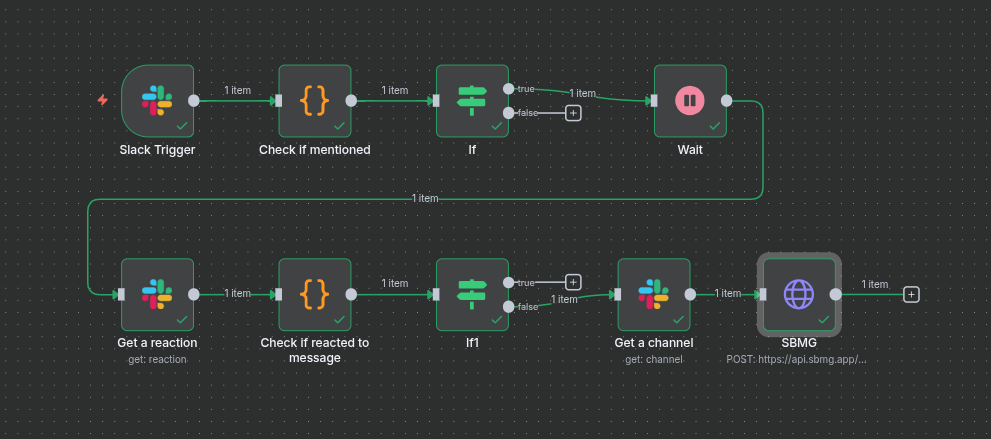
Keep your team responsive even when they’re away from their desk. This guide shows you how to automatically escalate unread Slack mentions to SMS using n8n and SBMG.
In today’s fast-paced work environment, critical messages can get buried in Slack channels. What if you could get an SMS alert for mentions you haven’t acknowledged within 15 minutes? This guide walks you through building a serverless escalation workflow that watches for Slack mentions, waits for your response, and sends a text message if you don’t react in time.
What We’ll Build
A smart escalation system that:
- Listens for Slack messages that mention you
- Waits 15 minutes (configurable) for you to react
- Checks if you’ve added any emoji reaction
- Sends an SMS alert via SBMG if you haven’t responded
- Works in both public and private channels
Prerequisites
Before starting, ensure you have:
- Slack Admin Access: Ability to create and configure Slack apps
- n8n Instance: Self-hosted or cloud account with workflow execution enabled
- SBMG Account: Active Small Business Messaging Gateway account with API key
- Your Slack User ID: We’ll extract this during setup
Step 1: Configure Your Slack App
Create and Permission Your Slack App
-
Visit https://api.slack.com/apps and Create New App
- Choose “From scratch” and name it “Message Escalation Bot”
- Select your workspace
-
Navigate to OAuth & Permissions and add these Bot Token Scopes:
channels:history- View messages in public channelsgroups:history- View messages in private channelsreactions:read- View emoji reactions
-
Install the app to your workspace and copy the Bot User OAuth Token
-
Invite the bot to any private channels you want monitored:
- In Slack, type
/invite @Message Escalation Botin each channel
- In Slack, type
Enable Event Subscriptions
- In your Slack app settings, go to Event Subscriptions
- Toggle Enable Events to ON
- We’ll come back to the Request URL after setting up n8n
Step 2: Create the n8n Workflow Foundation
Initial Workflow Setup
-
In n8n, create a new workflow and add a Slack Trigger node
-
Configure the trigger:
- Authentication: Connect your Slack account using the Bot Token
- Event: Select
message.channels(andmessage.groupsif needed) - Operation: Choose “Listen for events”
-
Get your webhook URL:
- Click the dropdown arrow in the Slack Trigger node
- Select “Test URL” and copy it to clipboard
-
Return to your Slack app’s Event Subscriptions page
-
Paste the URL into the Request URL field
-
If you see the challenge error, execute the Slack Trigger node once in n8n, then retry
Subscribe to Events
-
Under Subscribe to bot events, add:
message.channelsmessage.groups(if monitoring private channels)
-
Save your changes
Test the Connection
- In n8n, execute the Slack Trigger node
- Post a test message in a monitored Slack channel:
@yourusername test escalation - You should see the message data appear in the node output
Step 3: Filter Messages That Mention You
Extract and Verify Your Slack User ID
Add a Code (JavaScript) node connected to the Slack Trigger:
// This code checks if the message contains your @mention
const items = $input.all();

// Find your user ID from the test message
// Look in the input panel for text like "<@U01234ABC>"
const YOUR_SLACK_USER_ID = "<@U01234ABC>"; // TODO: Replace with your actual ID

const mentioned = items.some((item) =>
  item?.json?.text?.includes(YOUR_SLACK_USER_ID)
);

return [{ json: { mentioned, userId: YOUR_SLACK_USER_ID } }];
To find your User ID:
- Check the Slack Trigger’s output panel
- Look for the
textfield in your test message - Copy the
<@U...>string that represents your mention
Route Mentioned Messages
Add an IF node with the condition:
{{ $json.mentioned }} is equal to trueThis splits your workflow:
- TRUE branch: Messages mentioning you (proceed to escalation)
- FALSE branch: Ignore (connect to a NoOp node or leave dangling)
Step 4: Implement Escalation Logic
Add Wait Period
Add a Wait node to the TRUE branch:
- Wait For: 15 minutes
- Options: You can customize this based on urgency
- Critical channels: 5 minutes
- General channels: 30 minutes
Check for Your Reaction
Add a Slack node (type: Get a reaction):
- Authentication: Your Slack account
- Channel: By ID →
{{ $('Slack Trigger').item.json.channel }} - Message Timestamp:
{{ $('Slack Trigger').item.json.ts }}
Verify You Haven’t Reacted
Add another Code (JavaScript) node:
// Checks if YOU have reacted to the message
const items = $input.all();

const YOUR_SLACK_USER_ID = "U01234ABC"; // TODO: Replace with your ID (without <>)

const hasUserReacted = items.some((item) => {
  const reactions = item?.json?.message?.reactions;
  if (!Array.isArray(reactions)) return false;

  // Check if you appear in any reaction's users array
  return reactions.some((reaction) =>
    Array.isArray(reaction?.users) ? reaction.users.includes(YOUR_SLACK_USER_ID) : false
  );
});

return [
  {
    json: { hasUserReacted, shouldEscalate: !hasUserReacted },
    pairedItem: items.map((_, index) => index)
  },
];Important: This time use just the ID without the <@> brackets (e.g., U01234ABC).
Final Routing
Add an IF node to check:
{{ $json.hasUserReacted }} is equal to false- TRUE: You haven’t reacted → proceed to SMS
- FALSE: You’ve acknowledged → workflow ends
Step 5: Send SMS via SBMG
Configure HTTP Request Node
Add an HTTP Request node to the escalation path:
- Method: POST
- URL:
https://api.sbmg.app/v1/message - Authentication: None (we’ll use headers)
Set Headers
Enable Send Headers and add:
| Name | Value |
|---|---|
x-api-key | your_sbmg_api_key_here |
Content-Type | application/json |
Compose Message Body
Enable Send Body:
- Body Content Type: JSON
- Specify Body: Using JSON
{
  "to": ["+64212123456"],
  "message": "Unread mention in #{{ $json.name }}:
"{{ $('Slack Trigger').item.json.text.substring(0, 100) }}..."

Reply in Slack or react to stop alerts."
}
Customization tips:
- Replace
+64212123456with your mobile number {{ $json.name }}requires a “Get channel” node if you want the channel name- Trim long messages with
.substring()
Optional: Get Channel Name
If you want human-readable channel names, add a Slack node (type: Get a channel) before the HTTP node:
- Channel: By ID →
{{ $('Slack Trigger').item.json.channel }}
Then reference {{ $json.name }} in your SMS message.
Step 6: Test and Deploy
End-to-End Testing
- Activate the workflow in n8n
- Post a message mentioning yourself in Slack
- Wait the configured duration (don’t react!)
- You should receive an SMS
- Test the negative case: Post a mention, react within 15min → no SMS
Security Best Practices
- Never hardcode API keys in code nodes - use n8n credentials
- Store your SBMG API key in n8n’s Credentials section
- Use environment variables for sensitive data
- Limit the Slack bot to only necessary channels
Production Deployment
- Switch from Test URL to Production URL in Slack Event Subscriptions
- Enable Error Workflow to catch failures
- Set up logging for audit trails
- Monitor your SBMG usage and costs
Troubleshooting Common Issues
| Problem | Solution |
|---|---|
challenge parameter error | Execute Slack Trigger node before saving URL |
| No SMS received | Check SBMG balance, verify API key, check HTTP node logs |
| Getting alerts for own messages | Add filter: {{ $('Slack Trigger').item.json.user }} !== 'YOUR_BOT_USER_ID' |
| Private channels not working | Ensure bot is invited: /invite @botname |
| Workflow triggers too often | Add deduplication logic or rate limiting node |
For quick setup, contact our helpdesk to get access to our n8n workflow json file.